 Ambitus
Calendar
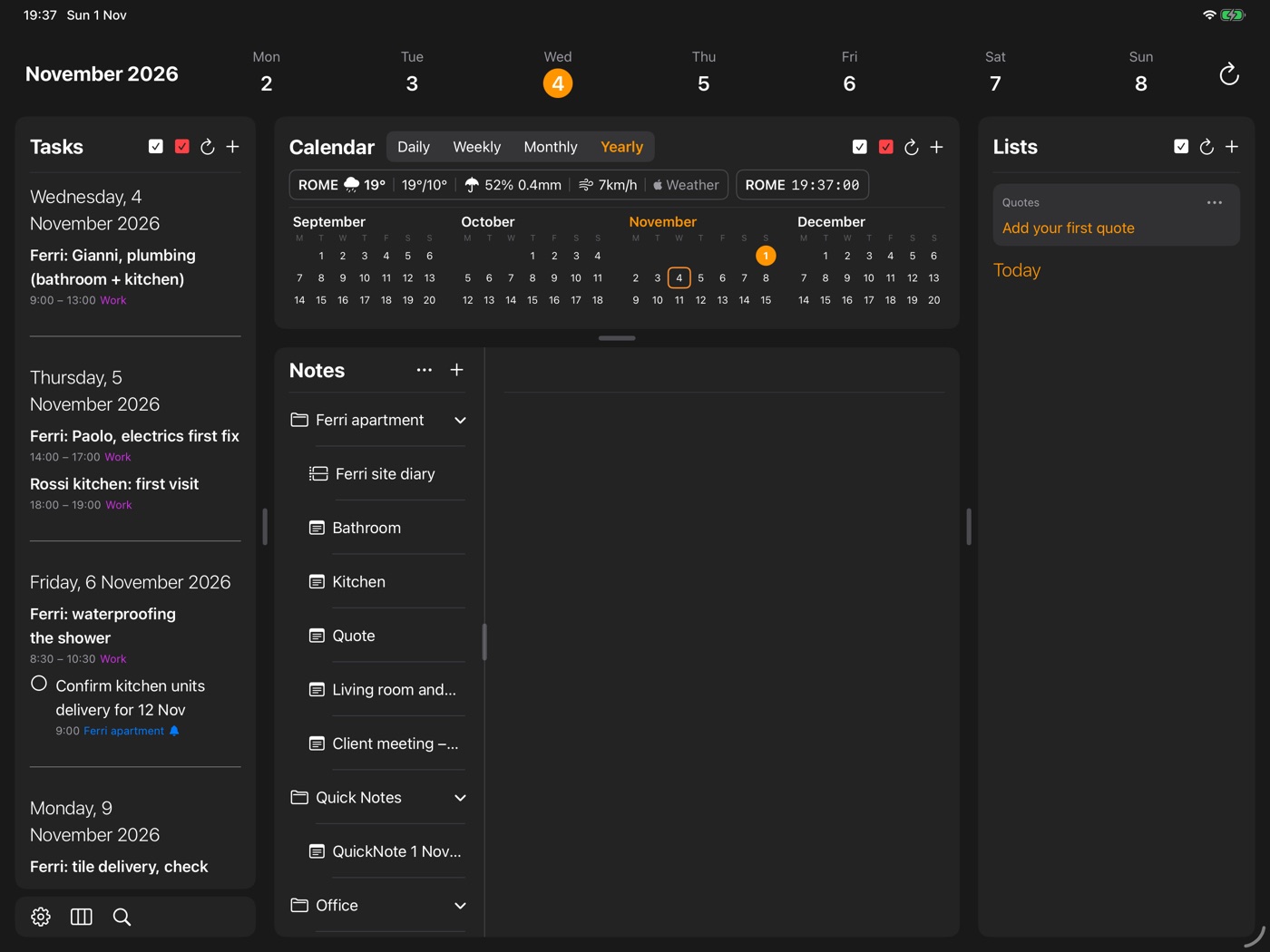
The Calendar shows the events from Apple's Calendar, and your tasks that have a time, in four views: Daily, Weekly, Monthly and Yearly. Nothing is copied into Ambitus. An event you change here changes in Apple's Calendar, and an event you add there appears here.
Where to find it
- Mac and iPad: the Calendar is in the middle of the window, between Tasks and Lists.
- iPhone: tap Calendar in the bar at the bottom of the screen.
The first time, Ambitus asks to use Reminders and Calendar. If you said no, see Tasks ▸ Allowing Reminders and Calendar later.
The four views
The four names stand at the top of the Calendar. Tap or click one to go to that view. On a Mac, or an iPad with a keyboard, ⌘1 to ⌘4 do the same.
| View | Shows | Keys |
|---|---|---|
| Daily | One day, hour by hour | ⌘1 |
| Weekly | One week, hour by hour | ⌘2 |
| Monthly | The months, with marks under each day | ⌘3 |
| Yearly | The whole year | ⌘4 |
Choosing a day
One tap or click selects a day. The selected day is the same everywhere in Ambitus, so Tasks and Lists follow it.
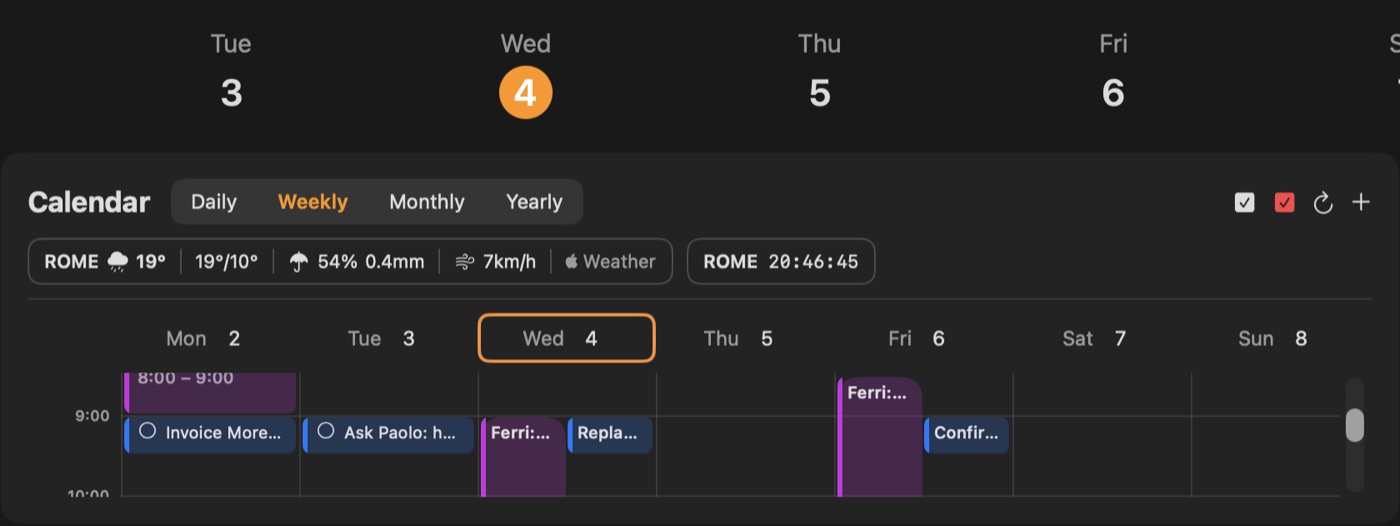
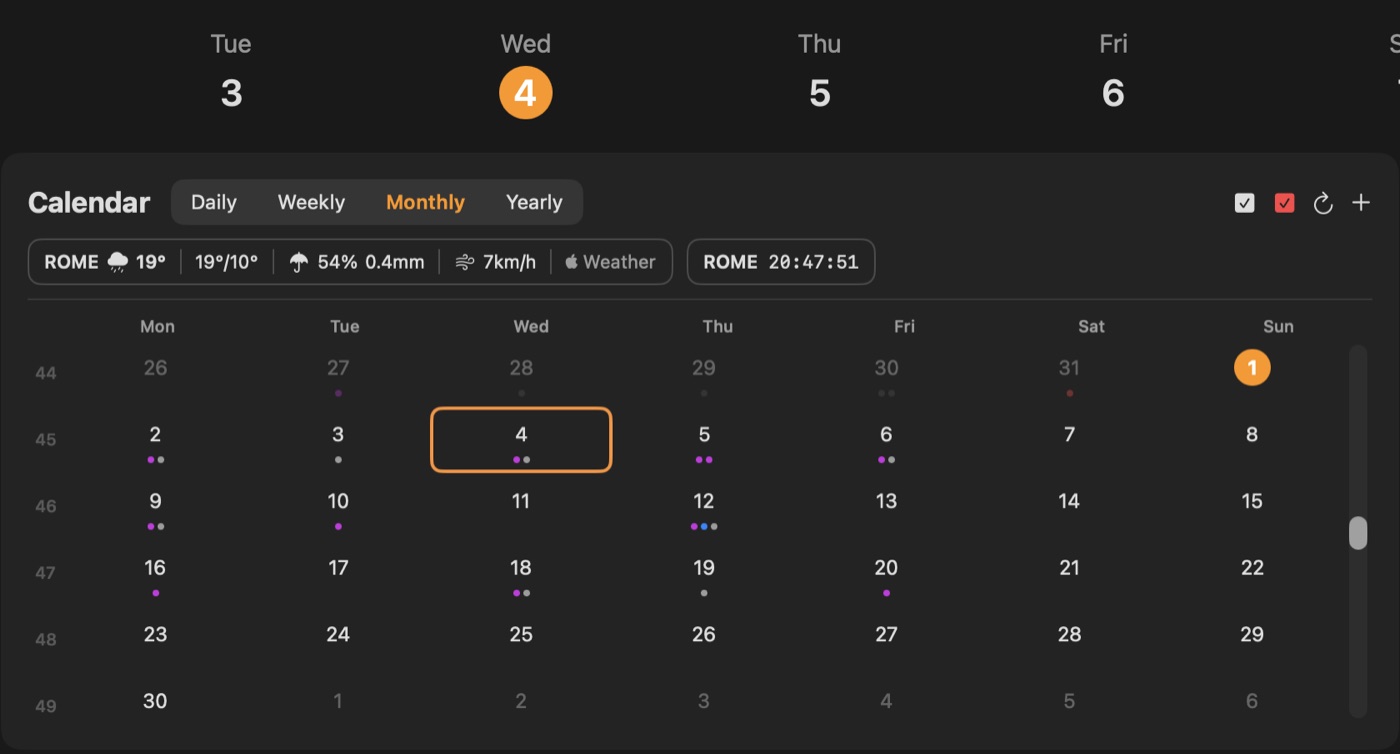
- Today has an orange circle.
- The selected day has an orange outline.
A double-tap or double-click on a day goes one step closer: from Yearly to Monthly, from Monthly to Weekly, and from Weekly to Daily. In Weekly, do it on the day's name.
Daily and Weekly
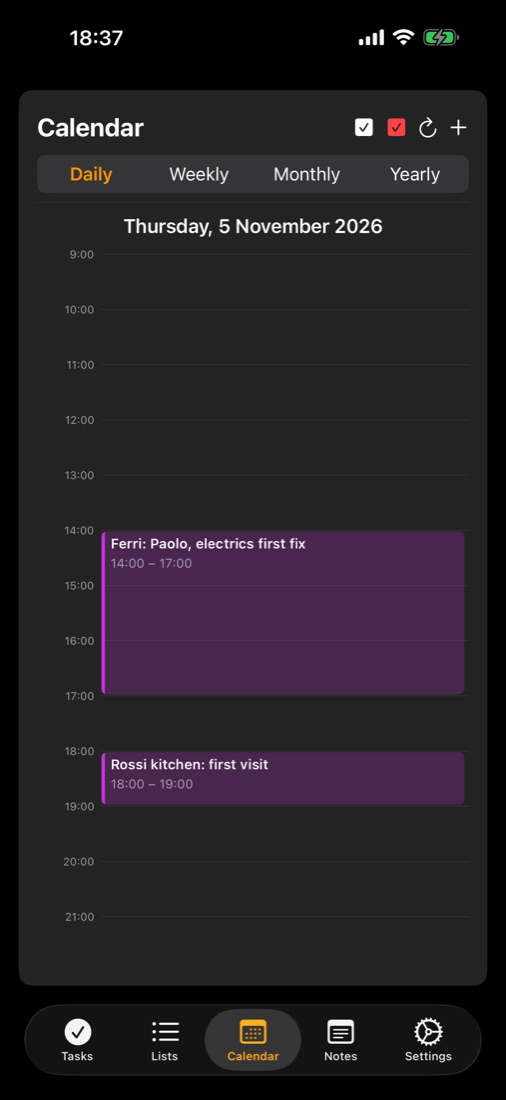
The hours run down the page, and each event is a block from its start to its end. A task with a time is a short block. All-day things stand at the top. An orange line marks the time now.
To change something:
- Mac: double-click a block, or right-click it for Edit, Duplicate and Delete.
- iPhone and iPad: tap a block, or touch and hold it for the same three.
Blocks can't be dragged to another time. To move one, open it and change its time.
To go to another day or week:
- iPad: in Daily, swipe sideways for the day before or after. In Weekly, a swipe sideways turns the week.
- iPhone: in Daily, swipe sideways for the day before or after. In Weekly, the days scroll sideways.
Going back to now by itself
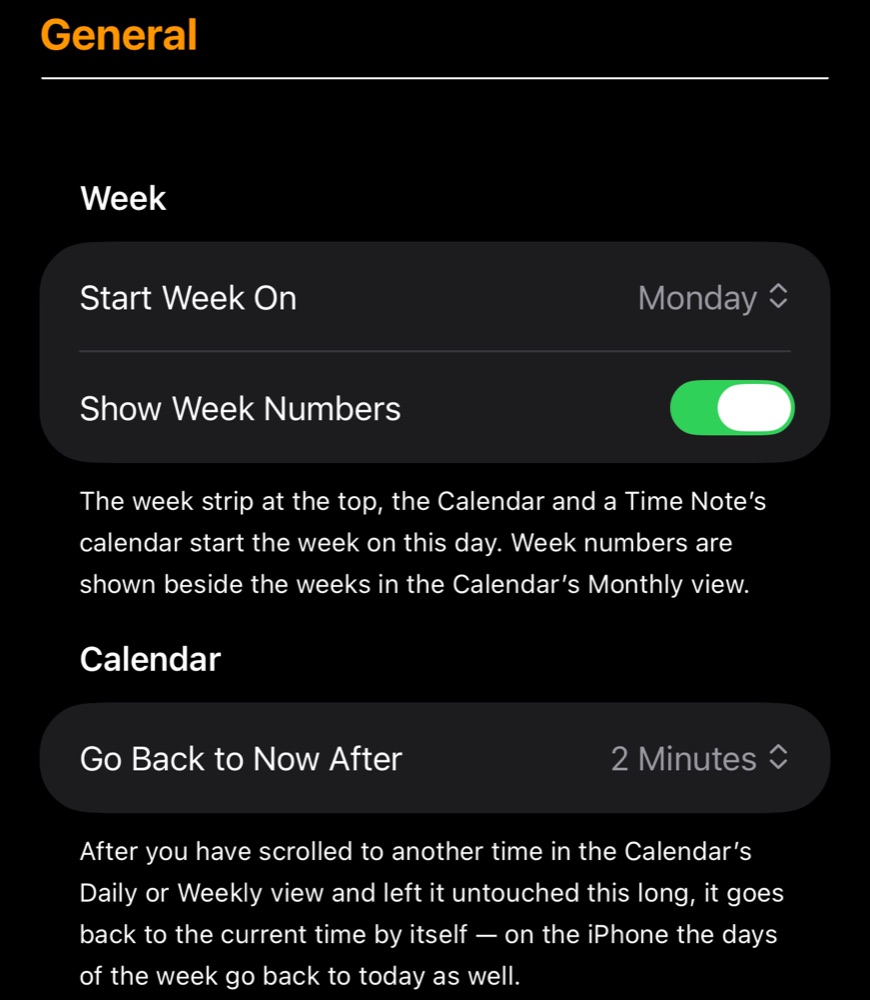
When you have scrolled to another time in Daily or Weekly and left it alone for two minutes, the Calendar returns to the current time. To change this, see Settings for the Calendar below.
Monthly
The months stand one under the other, and you scroll through them. Dots under a day show what is on it:
- an event, in its calendar's colour
- an overdue task, in red
- then open tasks, and finished ones
- after four dots comes a +
Yearly
The whole year at a glance. Tap or click a day to select it. Double-tap or double-click it to open it in Monthly.
The four buttons at the top right
| Button | Does | Keys |
|---|---|---|
| White tick box | Shows or hides completed tasks in the Calendar | |
| Red tick box | Shows or hides overdue tasks in the Calendar | |
| Round arrow | Goes back to today | ⌘D |
| + | Adds an event, or a task if you switch it at the top of the window | ⌘T |
The two tick boxes are the Calendar's own. The ones in Tasks are separate, so what you hide here still shows there.
The keys work on a Mac and on an iPad with a keyboard. For the Add window, see Tasks.
Settings for the Calendar
All of these are in Settings ▸ General.
| Setting | Choices | Does |
|---|---|---|
| Start Week On | Monday, Sunday | The first day of the week in the Calendar, the week strip and a Time Note's calendar |
| Show Week Numbers | On, off | Week numbers beside the weeks in Monthly |
| Go Back to Now After | Never, 1, 2 or 5 minutes | How long the Calendar waits before returning to the current time |