 Ambitus
Tasks
Tasks is where your day starts. It shows the tasks from Apple's Reminders and the events from Apple's Calendar as one list, day after day, with Today in orange. You add, tick off and change them here; Reminders and Calendar change with you, on every device.
Nothing is copied into Ambitus. A task you tick off here is ticked off in Reminders too, and a task you add in Reminders appears here.
Where to find it
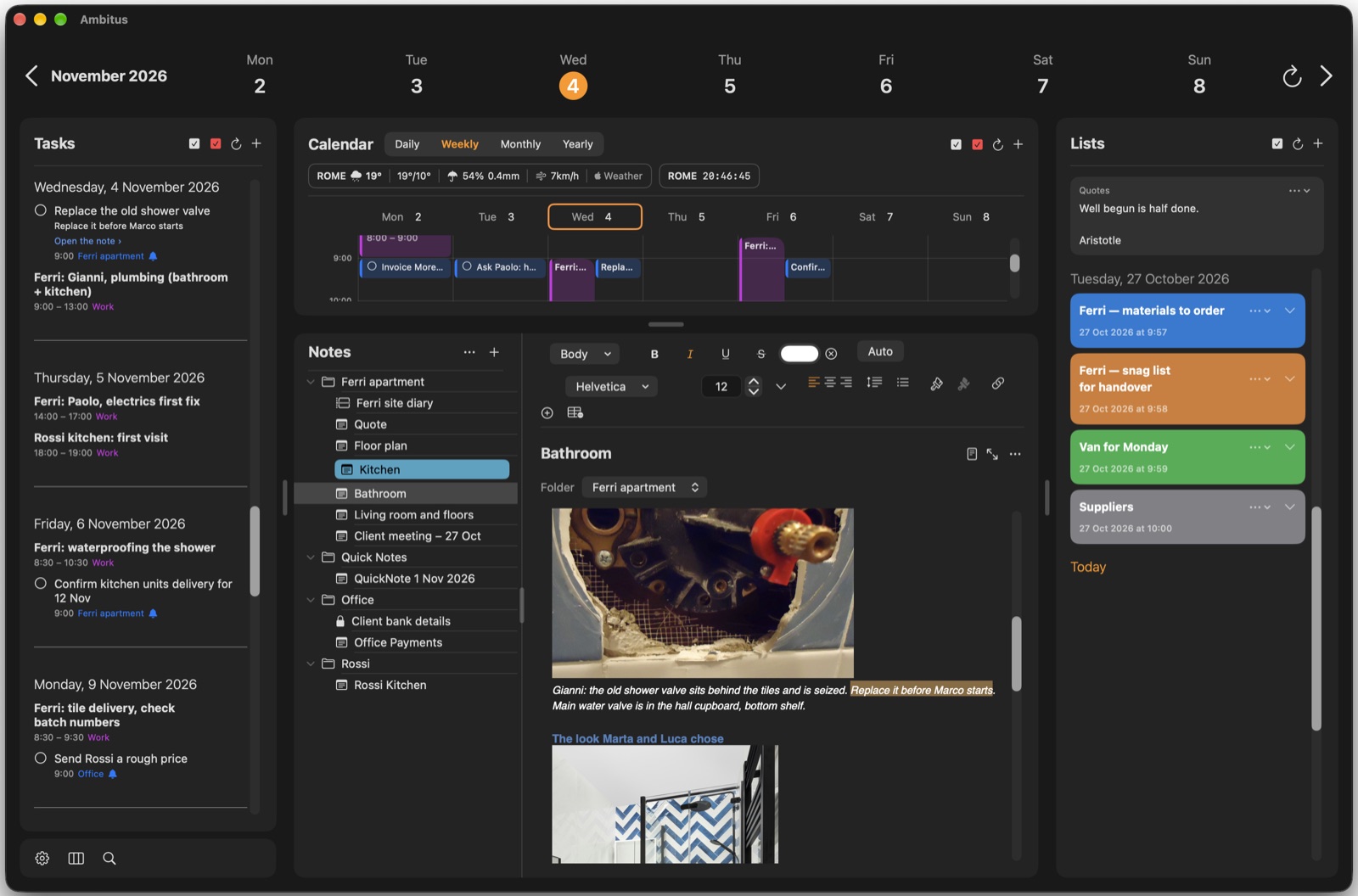
- Mac and iPad: Tasks is the left-hand column of the window.
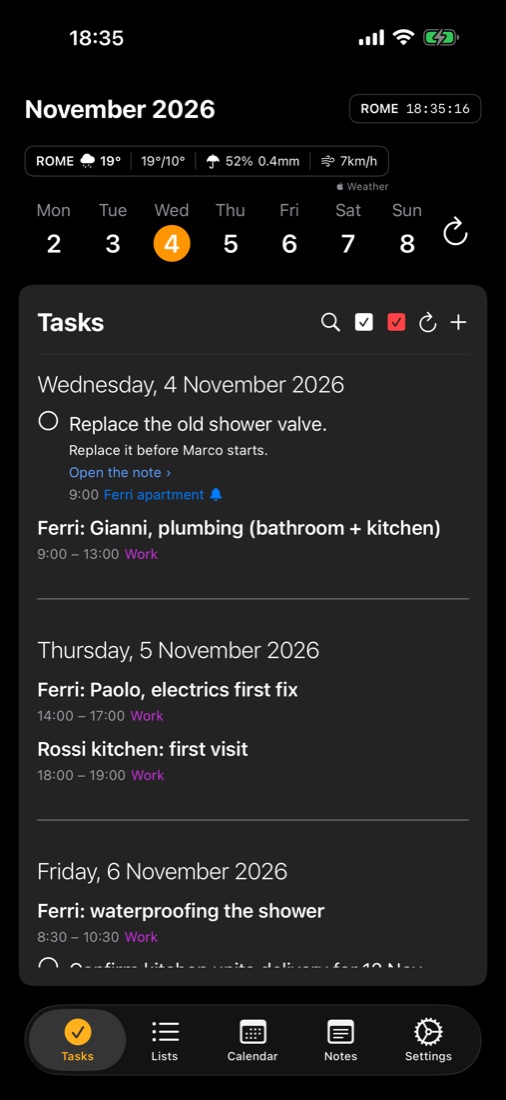
- iPhone: tap Tasks in the bar at the bottom of the screen.
The first time, Ambitus asks to use Reminders and Calendar. If you said no, see Allowing Reminders and Calendar later at the end of this chapter.
What you see
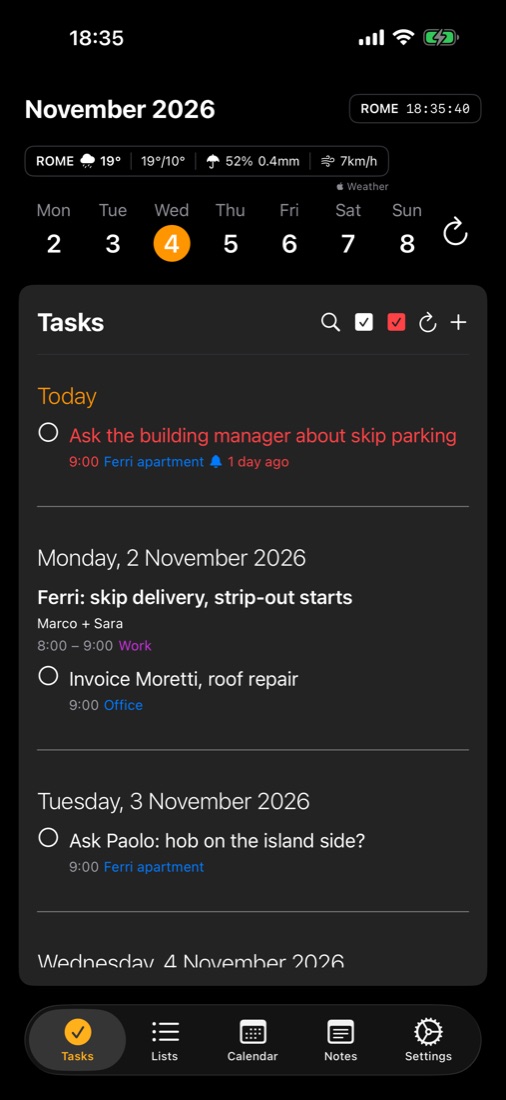
Tasks is one long list of days. Each day starts with its name — Today in orange, other days as a full date, such as Monday, 9 November 2026 — followed by everything on that day. A thin line separates one day from the next. A day with nothing on it is left out, except Today, which says Nothing scheduled and offers Add a task.
Only tasks that have a date are shown. A task without a date stays in the Reminders app.
A task
- A circle in front: tap or click it to tick the task off.
- The name.
- Under it, the first line of its notes, if it has any.
- Then its time (only if it has one), the list it belongs to in the list's colour, and small symbols: ⟳ when it repeats, a bell when it has an alert.
- A task that is overdue — not done, and its time has passed — is written in red, with how long ago it was due, for example 2 days ago.
An event
- No circle — events can't be ticked off.
- The name in bold, the first line of its notes, then its start and end time (or All day), its calendar in the calendar's colour, and the same repeat and alert symbols.
Made from a note
A task or event you made from words in a note, or from a list item, also shows Open the note › (or Open the list ›). Tap or click it to go straight back to those words. See Notes ▸ From a note to a task or event.
Moving between days
The week row
Above the list is a row of seven days. Today's number is orange; the day you're looking at sits in an orange circle.
- Tap or click a day in the row. Tasks scrolls to that day — and so do Lists and the Calendar, because the whole window follows the day you pick.
- To see the next or the previous week:
- Mac: click the arrows at either end of the row.
- iPad and iPhone: swipe the row left (next week) or right (previous week).
- To jump to any date, tap or click the month and year (November 2026) at the start of the row. Pick the date and tap Done.
- To come back to today, tap or click the round arrow at the end of the row. On a Mac or an iPad with a keyboard: ⌘D.
Swiping through days (iPad and iPhone)
Swipe across the list itself to move one day at a time: from left to right for the next day, from right to left for the previous day.
Scrolling
You can also simply scroll the list up and down. Ambitus opens with Today at the top and keeps it there until you scroll or pick another day.

Adding a task
- Tap or click + at the top of Tasks. On a Mac or an iPad with a keyboard: ⌘T.
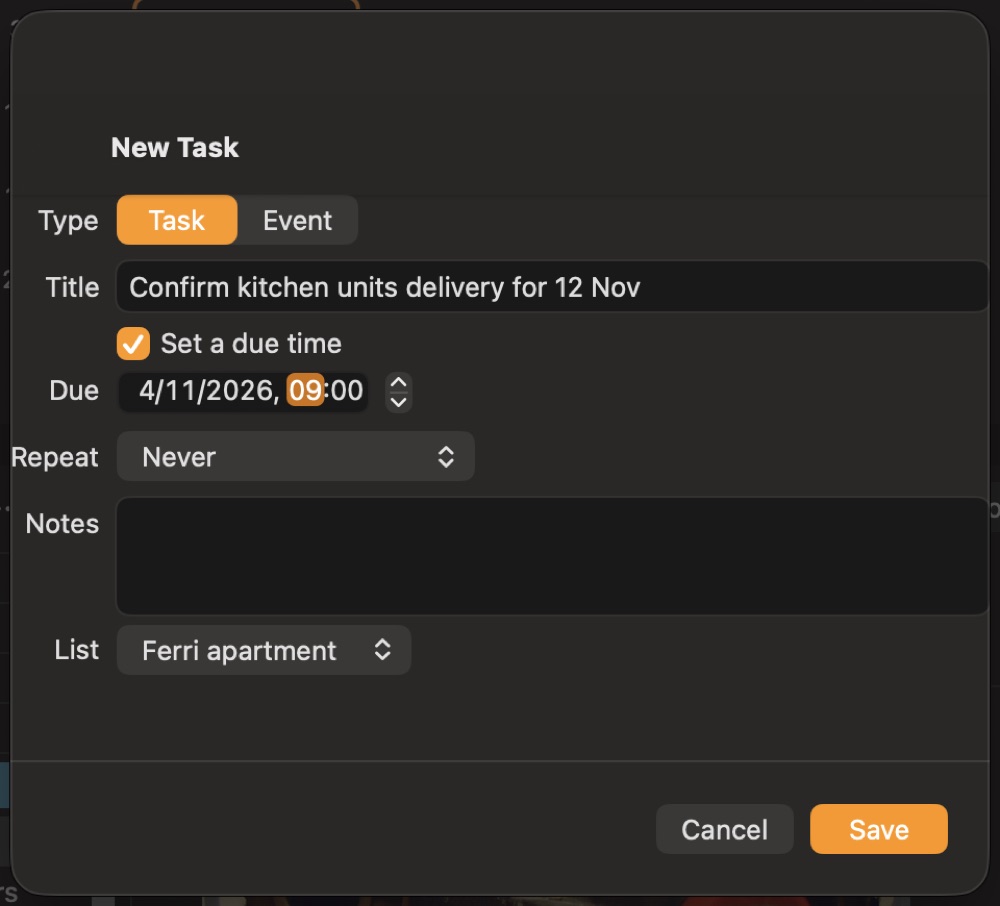
- The New Task window opens, for the day selected in the week row. Task is chosen at the top.
- Type the Title.
- Choose when it's due:
- Due — the day.
- Set a due time — switch it on to give the task a time as well. A task with a time gets an alert at that time; a task without a time has no alert.
- Repeat (optional): Never, Daily, Weekdays (Mon–Fri), Weekends, Weekly, Monthly or Yearly.
- Notes (optional): anything you want to remember with it. The first line shows under the task's name in the list.
- List: the Reminders list it goes into.
- Tap or click Save. (Save stays grey until the task has a title.)
The task appears in Tasks, and in Reminders on all your devices.
Adding an event
- Tap or click + (or ⌘T).
- At the top of the window, choose Event. The window becomes New Event.
- Type the Title.
- All-day — switch it on for an event without times, such as a holiday.
- Starts and Ends — the day and time (only the days when All-day is on).
- Alert: None, At time of event, 5, 15 or 30 minutes before, 1 hour before or 1 day before.
- Repeat, Notes, and the calendar to put it in (the last line, List, lists your calendars for an event).
- Save.
On a day with nothing on it
When Today is empty, it says Nothing scheduled with Add a task under it — a shortcut to the same window.
Ticking a task off
- Tap or click the circle in front of the task.
- The circle fills, and the task leaves the list — unless completed tasks are shown (see The buttons at the top).
To take a tick back: tap or click the circle again (with completed tasks shown), or on a Mac or an iPad with a keyboard press ⌘Z straight away.
A repeating task moves on to its next date when you tick it off, and a ticked copy stays on the day you did it — so you can see it was done. To take that tick back, untick the copy (with completed tasks shown): the task comes back to that day. ⌘Z doesn't take back the tick of a repeating task.
Changing a task or event
- Double-click the row (Mac) or double-tap it (iPad, iPhone). The Edit Task or Edit Event window opens.
- Change what you need — title, day, time, repeat, notes, list.
- Save.
A task can't be turned into an event (or the other way round) once it has been saved: the Task / Event choice is greyed out when editing.
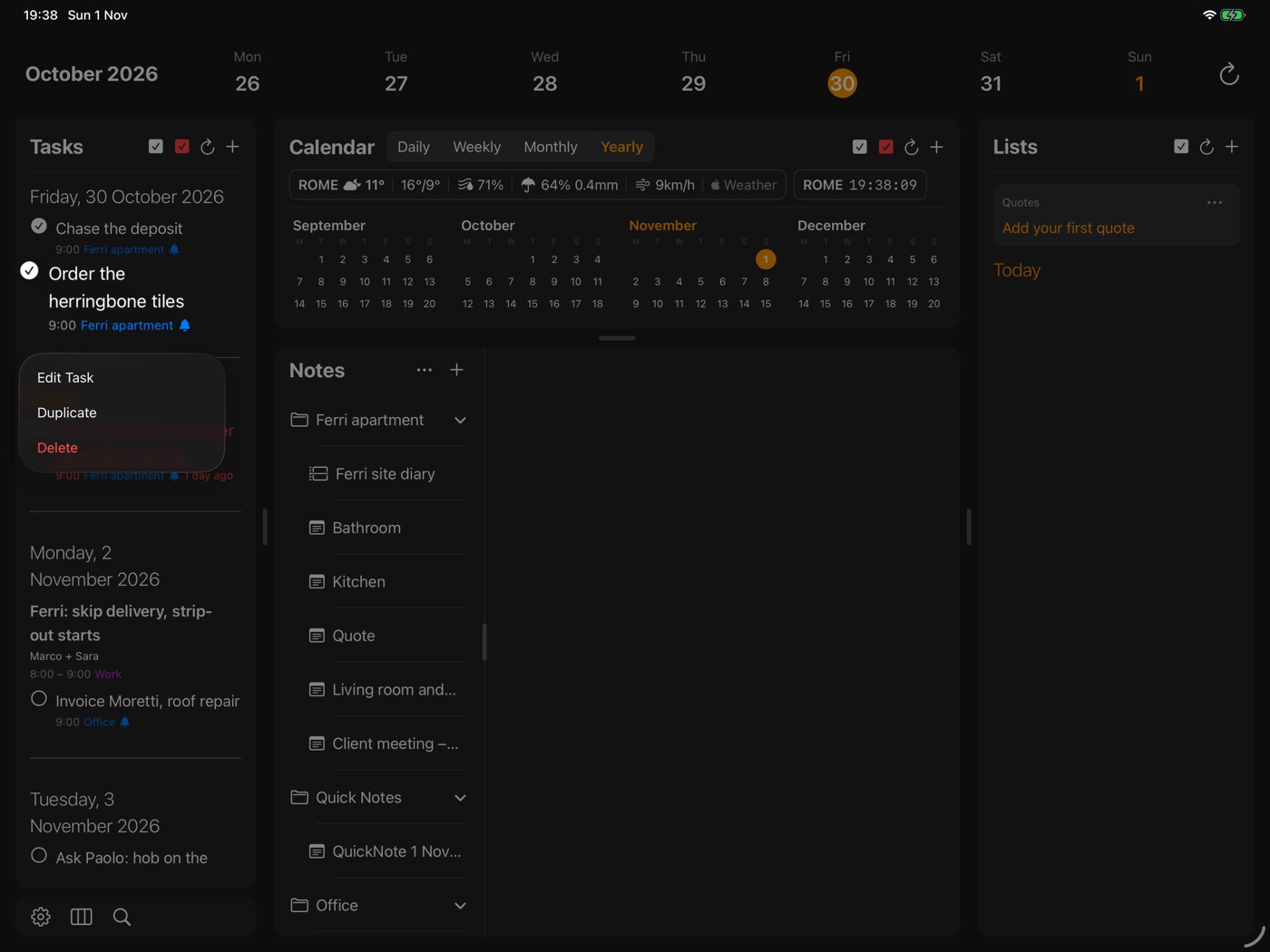
The menu on a row
Right-click a row (Mac), or touch and hold it (iPad, iPhone):
- Edit Task / Edit Event — the same window as a double-click.
- Duplicate — a copy on the same day, with copy after its name. A duplicated task starts not ticked, with the same list, time, notes and repeat.
- Delete — asks Delete "name"? first, because it can't be undone. Delete to confirm, Cancel to keep it.
You can also delete from inside the Edit window: Delete at the bottom.
The buttons at the top
At the top of Tasks, next to its name:
- iPhone only — the magnifying glass: searches your tasks, notes and lists. (On a Mac and an iPad, the magnifying glass is in the small bar under the Tasks column, next to Settings — or press ⌘F.)
- The white tick box: shows or hides completed tasks.
- The red tick box: shows or hides overdue tasks. When shown, they're all listed under Today, in red.
- The round arrow: back to today (⌘D).
- +: a new task or event (⌘T).
The same two switches are in Settings ▸ Tasks & Calendar ▸ Tasks: Show Completed and Show Overdue (under Today).

Alerts
A task with a due time gets an alert at that time. A task without a time has none. Events get the alert chosen in their window.
For alerts to appear, Ambitus must be allowed to send them: Settings ▸ Tasks & Calendar ▸ Permissions. If Notifications isn't allowed there, see Allowing Reminders and Calendar later below.
Choosing what Tasks shows
Settings ▸ Tasks & Calendar has:
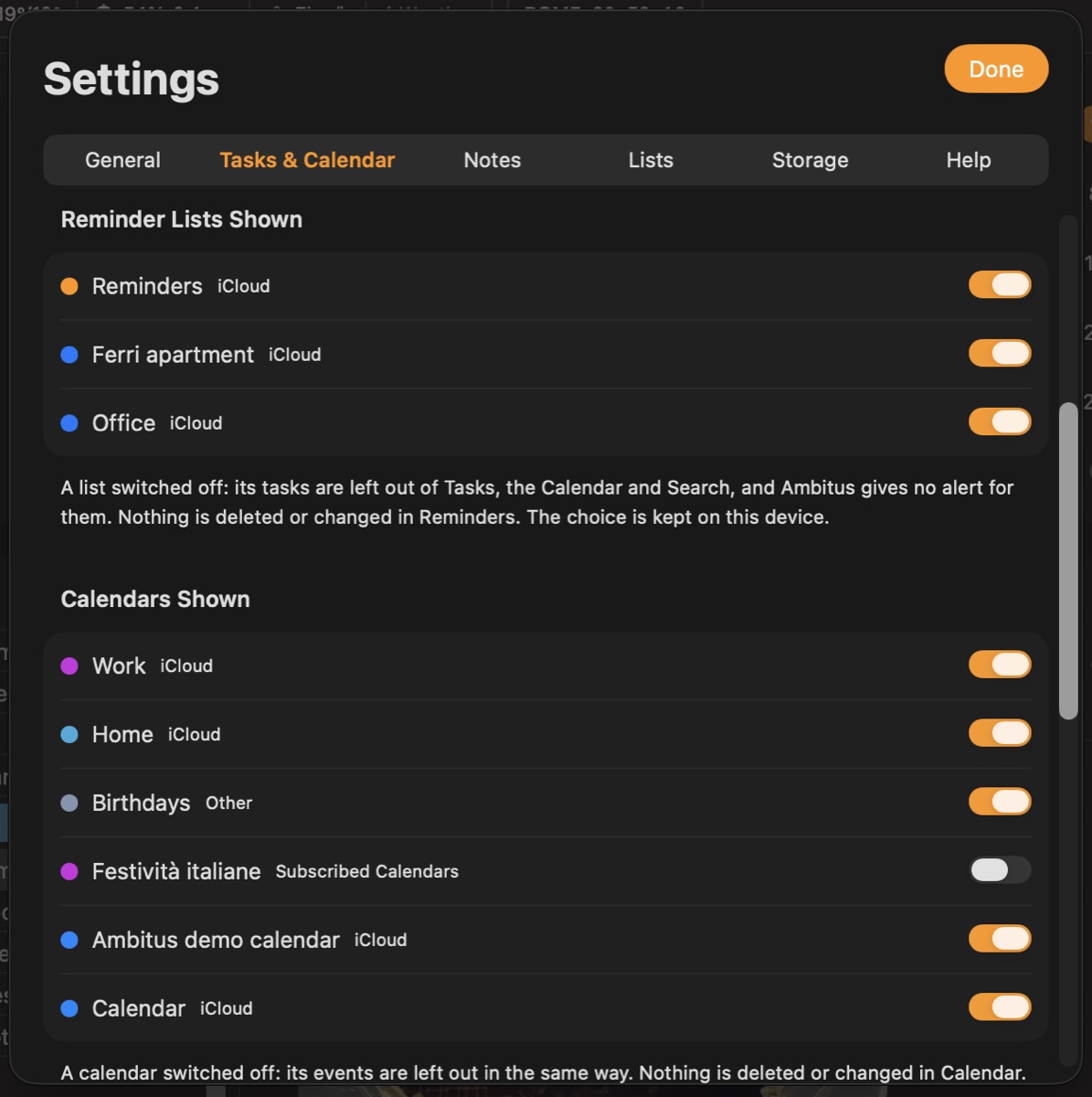
- Reminder Lists Shown — a switch for each of your Reminders lists. A list switched off is left out of Tasks, the Calendar and Search, and Ambitus gives no alerts for it. Nothing is deleted or changed in Reminders. The choice is kept on this device only.
- Calendars Shown — the same for your calendars.
- New Task — how the window for a new task starts:
- List — the list a new task goes into (The First List, or one you choose).
- Starts With a Due Time — on, and a new task starts with a time.
- Due Time — which time.
Everything can still be changed in the window itself.
On Apple Watch
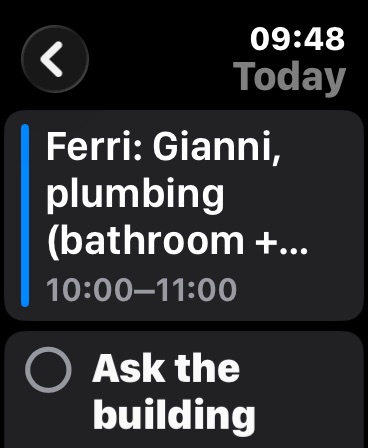
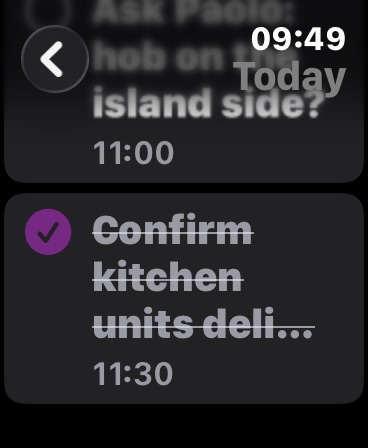
The Today screen on Apple Watch shows today's tasks and events, and a task can be ticked off there. See Apple Watch.
Allowing Reminders and Calendar later
If you said no when Ambitus first asked, Settings ▸ Tasks & Calendar ▸ Permissions shows what's allowed — Calendars, Reminders, Notifications — and offers Allow Reminders and Calendar… and Allow Alerts… while they haven't been asked yet. If you said no before, change it in your device's own Settings ▸ Privacy & Security (Mac: System Settings ▸ Privacy & Security).
Keys (Mac, and iPad with a keyboard)
| Key | Does |
|---|---|
| ⌘T | New task or event |
| ⌘D | Back to today |
| ⌘Z | Take back the last tick |
| ⌘F | Search |