 Ambitus
The Note as a Page
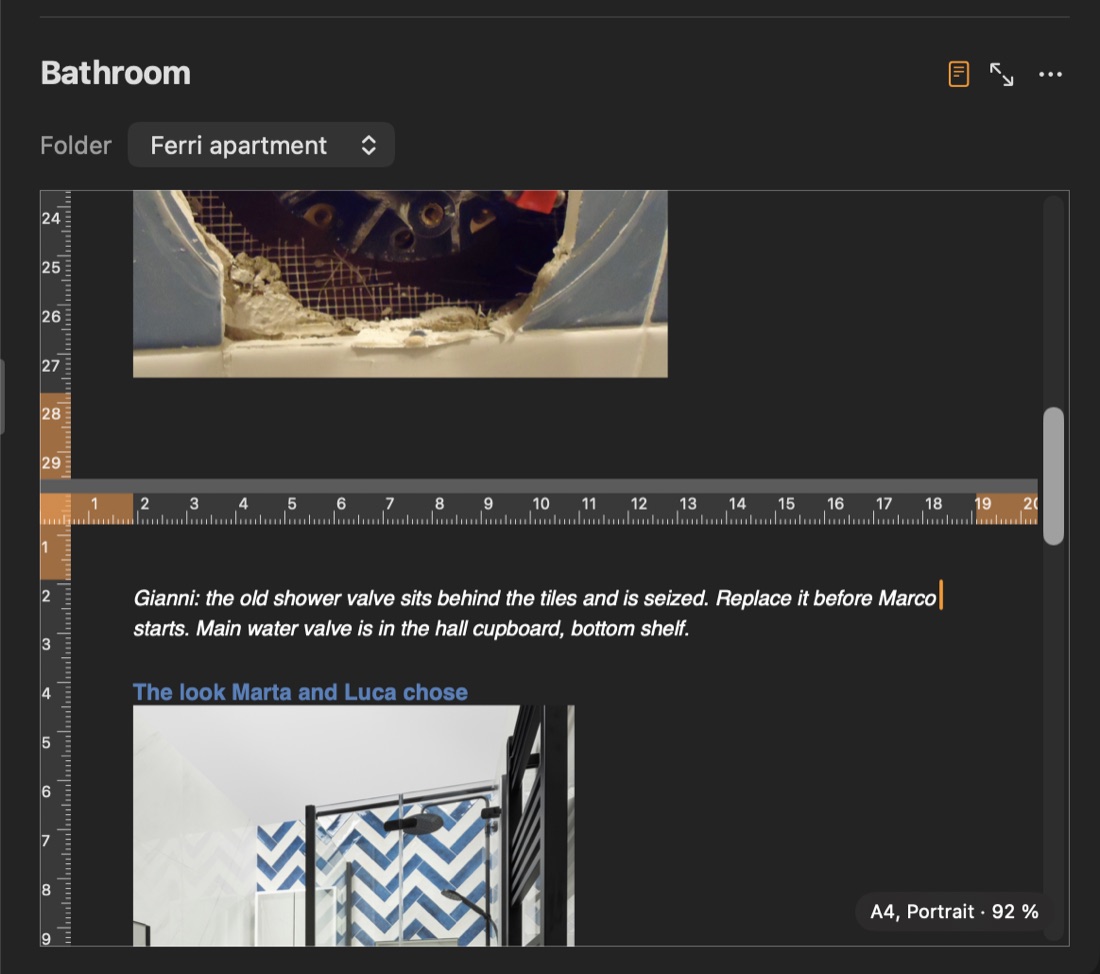
A note can be shown as the page it will be printed on: white margins, the page's edge, and a gap where one sheet ends and the next begins. What you see is what the PDF and the print will show.
Turning it on and off
Use the page button beside the window arrows at the top of the note.
- Mac: right-click the button for Page Size, Orientation, Page Colour and Show Rulers.
- iPhone and iPad: touch and hold the button for the same four.
The open note's ••• has them too.
Being shown as a page, and the page's size and orientation, are kept on each device separately. The iPhone can show a note plainly while the Mac shows it as an A4 page. A new page starts from Settings ▸ Notes ▸ PDF Export.
Page size and orientation
The sizes are A5, A4, A3 and US Letter, in Portrait or Landscape. A page of your own size is typed in Settings ▸ Notes ▸ PDF Export.
Page colour
Choose No Page Colour, White, Cream, Light Grey, Yellow, Light Blue, Mint, Dark Grey, Black or Other….
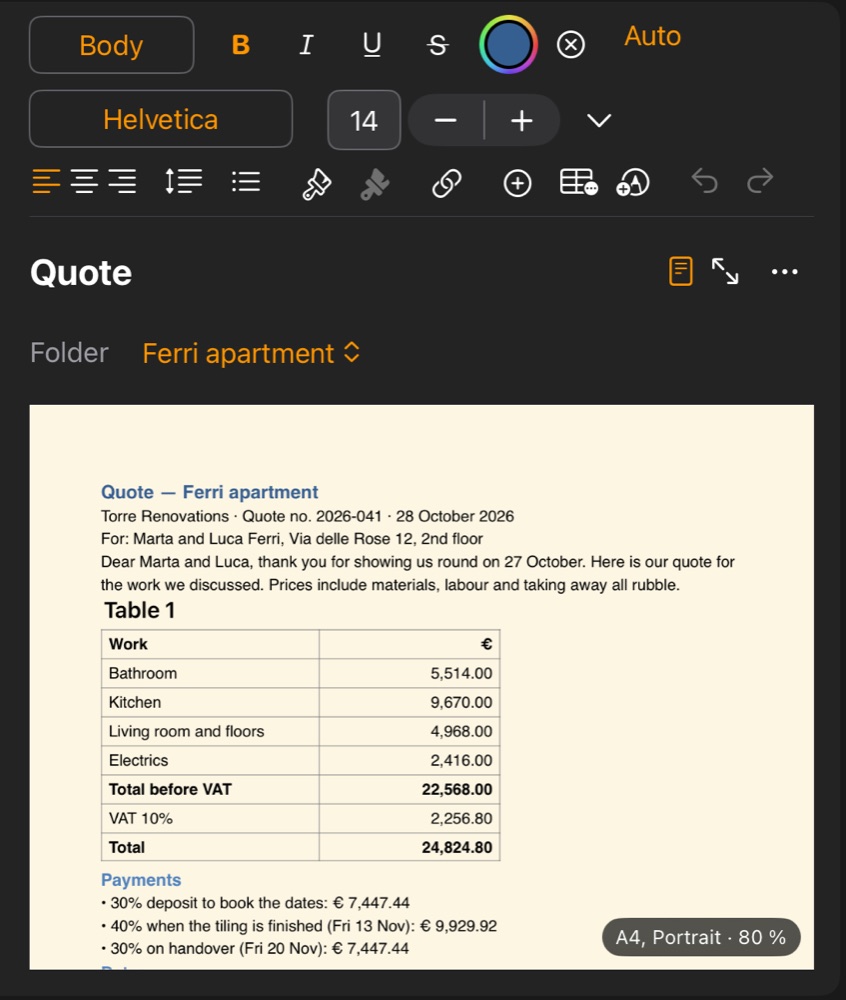
The colour belongs to the note and is the same on every device, but it is seen only where the note is shown as a page. Choosing a colour shows the note as a page.
On a light page, text with no colour of its own is dark. On a dark page, it is light. The tool bar's Auto button takes a colour off the selected text, so that it follows the page again. Bold, size and the rest stay.
Pages and page breaks
Text and empty lines run on to the next sheet exactly as they will in the PDF.
A photo, drawing or video taller than the page is shown smaller, at the size the PDF will use, with a message saying by how much (shown at 92 % of its size). Dismiss puts the message away. Without the page, it keeps its own size.
Long and wide tables
- A table longer than the page runs across the page break on screen, with a message. The PDF and the print split it into pages and repeat its header rows.
- A table wider than the page stays as it is on screen. The PDF and the print shrink it to fit the page's width.
To see the exact pages first, use Print instead of Export. Its preview shows them, and can save them as a PDF.
Rulers
Show Rulers puts a ruler along the top and the left side of each sheet, with the margins marked. It is kept per note, on each device.
Zooming
- Mac: View ▸ Zoom In (⇧⌘.), Zoom Out (⇧⌘,) and Fit Page to Width (⌘0), or pinch on the trackpad.
- iPad: pinch to make the page bigger or smaller. The % button goes back to fitting the screen. With a keyboard: ⇧⌘. bigger, ⇧⌘, smaller, ⌘0 back to fitting.
- iPhone: pinch to make the page bigger or smaller. The % button goes back to fitting the screen.