 Ambitus
Sharing and Export
Everything you make in Ambitus can go out as a file, and documents can come in. This chapter lists each way, one thing at a time.
A note
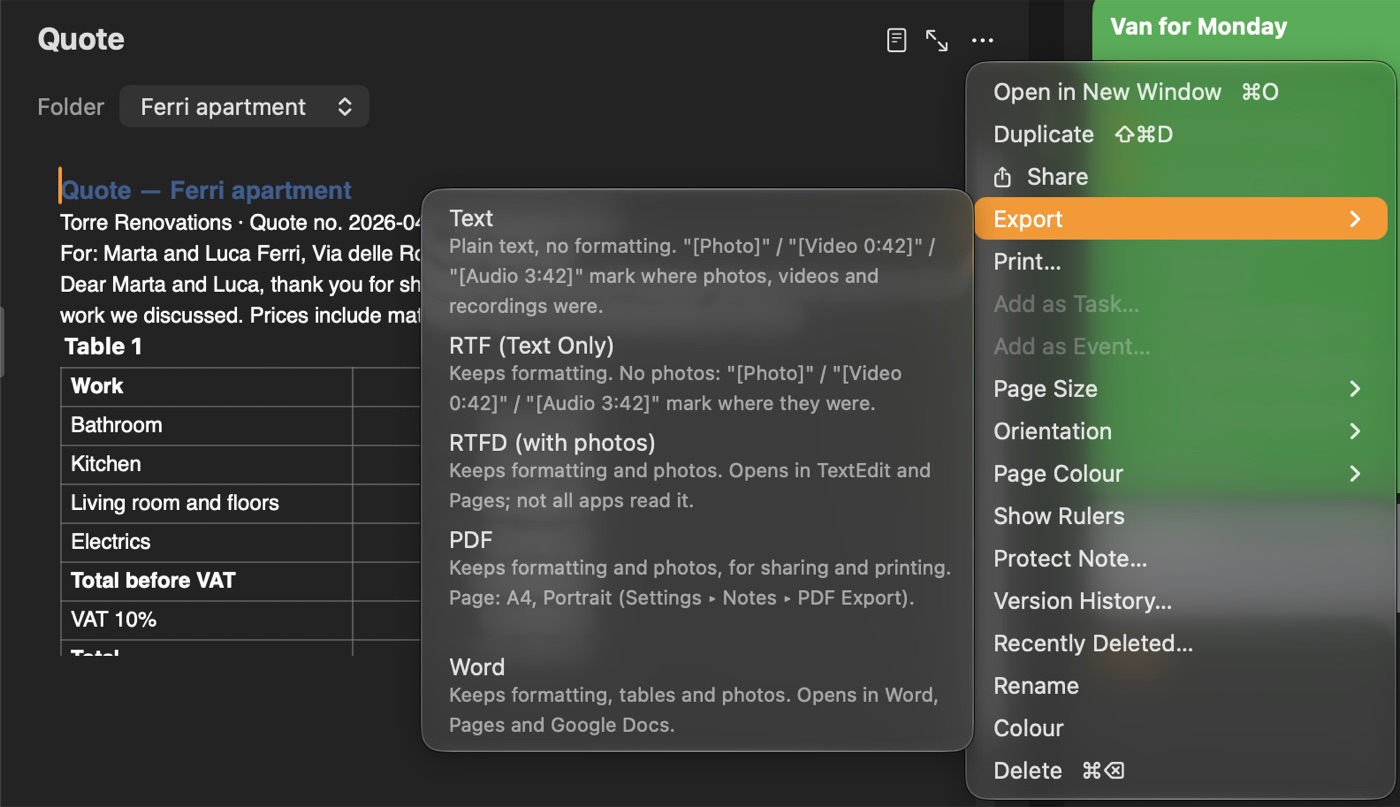
Export saves a note as a file, in one of five formats.
- Mac: File ▸ Export… (⇧⌘E), or Export in a note's menu.
- iPhone and iPad: Export… in a note's menu (⇧⌘E with a keyboard).
| Format | What it keeps |
|---|---|
| Text | Plain text, no formatting |
| RTF (Text Only) | The formatting, without photos |
| RTFD (with photos) | Formatting and photos. It opens in TextEdit and Pages; not all apps read it |
| Formatting and photos, laid out on pages, for sharing and printing | |
| Word | Formatting, tables and photos, ready for Word, Pages and Google Docs. Videos and recordings show as a picture |
In Text and RTF, [Photo], [Video 0:42] and [Audio 3:42] mark where photos, videos and recordings were.
A Word file's quick look (the space bar) shows only part of it. Open it in Pages or Word to see it all.
Wrapped pictures keep their place.
Share sends the note's plain text to another app.
The PDF's page
A PDF is laid out on the page set in Settings ▸ Notes ▸ PDF Export: A5, A4, A3, US Letter or a size of your own, Portrait or Landscape. It starts as A4, or US Letter in the United States, Canada and a few other countries.
A note shown as a page is exported on its own page instead. See The Note as a Page.
Printing
Print… in a note's menu prints the note laid out as its PDF would be. On a Mac, ⌘P does the same. The paper is chosen in the print window, and the note is laid out for it.
The print window can also save the pages as a PDF:
- Mac: use its PDF button.
- iPhone and iPad: use the Share button at the top of the print window, then Save to Files.
A page with a colour
When a note shown as a page has a page colour, a PDF asks first, Export on the Page Colour?: the coloured page or a white one.
Printing asks too, Print on the Page Colour?, with White Page first, since a coloured page uses more ink.
A folder exported as PDF asks once for all its notes. RTFD is always white.
Good to know about PDF
- A photo that doesn't fit in the space left on a page moves whole to the next page, leaving a gap, as when printing from Pages or Word.
- A wrapped picture that doesn't fit at the bottom of a page moves to the top of the next one, with the text beside it there.
- Empty lines are kept, as on screen.
- A table longer than a page is split into pages with its header rows repeated. A wider one is shrunk to the page's width. To see the exact pages first, use Print: its preview shows them.
A folder
Export in a folder's menu writes every note in it as a file of its own, in the format you choose, into a place you pick. Folders inside it are kept as folders.
A Time Note
From an open day's •••: Export ▸ This Entry… or All Entries…, and Print ▸ This Entry… or All Entries….
From the Time Note's menu in the list: Print ▸ All Entries…, and Export, which writes each day as a file of its own.
A list
Export… in a list's ••• menu offers Share as Text or Share as PDF.
A table
Export Table in the table's menu gives CSV (for Numbers or Excel), PDF, a picture (PNG) or tab-separated text. A table's PDF is laid out on the note's page, and asks about its colour in the same way.
A photo, drawing, recording or video
Each has its own Export in its menu:
- A photo: as shown, or the original.
- A drawing: with its paper, or with no background.
- A recording: as an audio file.
- A video: the 1080p copy, or the original from Photos.
Importing a document
Import Document… in the + menu of the Notes list makes a new note from a Word document (.docx), an RTF, an RTFD or a PDF, with its formatting, tables and pictures. The note is named after the file and goes into the folder you are in.
- A PDF comes in page by page, each page a picture as wide as the note. A PDF of more than 20 pages first asks which pages to bring in, and the next time offers the pages after those. The note's name shows its pages, for example Name (pp. 21–40).
- Fonts Ambitus doesn't have become your new-note font, and black text becomes the normal text colour, so it shows in the dark look.
- From an RTF or RTFD, tables come in as tables on the Mac and as lines of text on the iPhone and iPad. Pictures come in from an RTFD; a plain RTF brings none, as in Pages.
- An older Word file (.doc) can be saved as .docx in Word or Pages first.
To bring in many notes at once, see Notes ▸ Bringing your notes from another app.
Contents · ← Protected Notes and Lists · Files and Storage →