 Ambitus
Getting Started
Ambitus brings your tasks, calendar, notes and lists together in one app. This chapter takes you through the first start and shows where everything is. The chapters after it cover each part in detail.
The first start
- The welcome. A short welcome asks where to keep your notes and lists: in iCloud Drive or on this device. The welcome can be closed at any time with the ⊗ at its top right. If you close it before the end, it says what is left undone, and it comes back the next time Ambitus starts.
- The trial. A page offers Start Free Trial or Buy Now. See Buying Ambitus.
- Permissions. Ambitus asks for each one only when it first needs it, such as Reminders and Calendar. It keeps working if you say no. See Permissions and Privacy.
The window
Mac and iPad
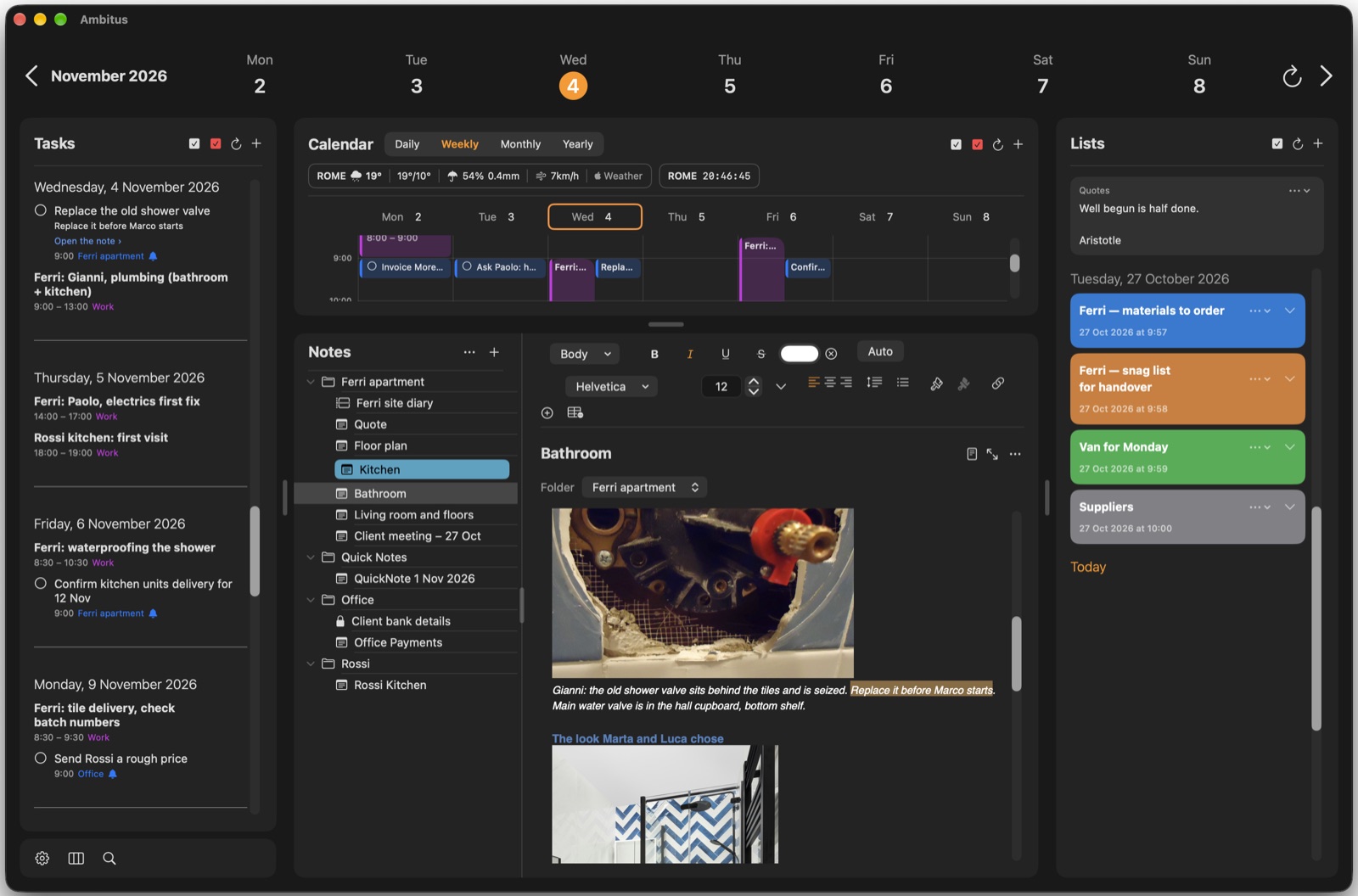
Ambitus shows everything at once. Tasks are on the left, the Calendar and your Notes in the middle, and your Lists on the right.
Drag the line between two parts to make one wider. The three-column button under Tasks puts them back.
On an iPad, in a narrow window, the parts become tabs along the bottom instead.
iPhone
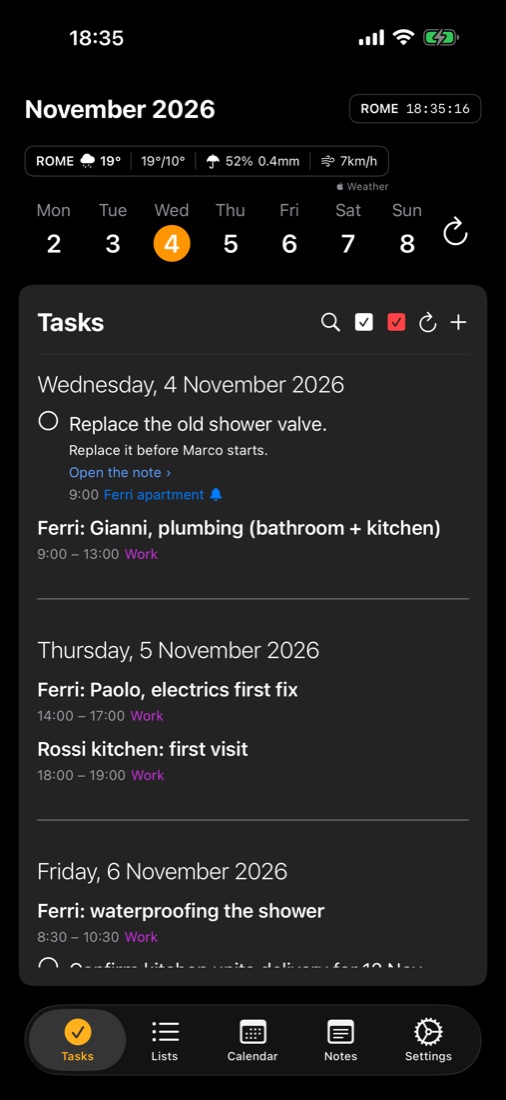
Along the bottom are five tabs: Tasks, Lists, Calendar, Notes and Settings. Each is one part of Ambitus.
The week on top
The row of days shows one week. On the iPhone, it stands at the top of Tasks. Tap or click a day to see its tasks.
- To move a week back or forward: on a Mac, use the arrows at the ends of the row. On an iPhone or iPad, swipe the row sideways.
- To go back to today: use the round arrow. On a Mac: ⌘D.
- To pick any day: tap or click the month's name for a calendar.
The three buttons under Tasks (Mac and iPad)
| Button | Does | Keys (Mac) |
|---|---|---|
| Gear | Opens Settings | ⌘, |
| Three columns | Resets the window layout | |
| Magnifying glass | Searches your tasks, notes and lists | ⌘F |
On the iPhone, the magnifying glass is at the top of Tasks, Lists and Notes, and searches all three at once.
Adding things
Each part has its own + at its top right: a new task, event, note or list. The Calendar's + opens on Event, and Tasks' on Task. Either can be switched at the top of the window.
An empty part says so and offers a first one:
| It says | It offers |
|---|---|
| Nothing scheduled | Add a task |
| No notes yet. | Add your first note |
| No lists yet. | Add your first list |
| (in the Quotes box) | Add your first quote |
Settings
Each setting has a line under it saying what it does.
- Mac and iPad: the names across the top of Settings are General, Tasks & Calendar, Notes, Lists, Storage and Help.
- iPhone: Settings is one long page. The orange names under Settings jump to each part, and Back to Top ↑ at the end of each part goes back up.
General also shows Ambitus itself: the free trial, or the purchase.
Seeing the welcome again
Settings ▸ General ▸ Welcome has Show Welcome Again and Quick Start.