 Ambitus
Photos, Drawings, Recordings and Video
A note can hold more than text. Photos, drawings, recordings and videos sit in the text at the place you put them, and move with it.
Adding something
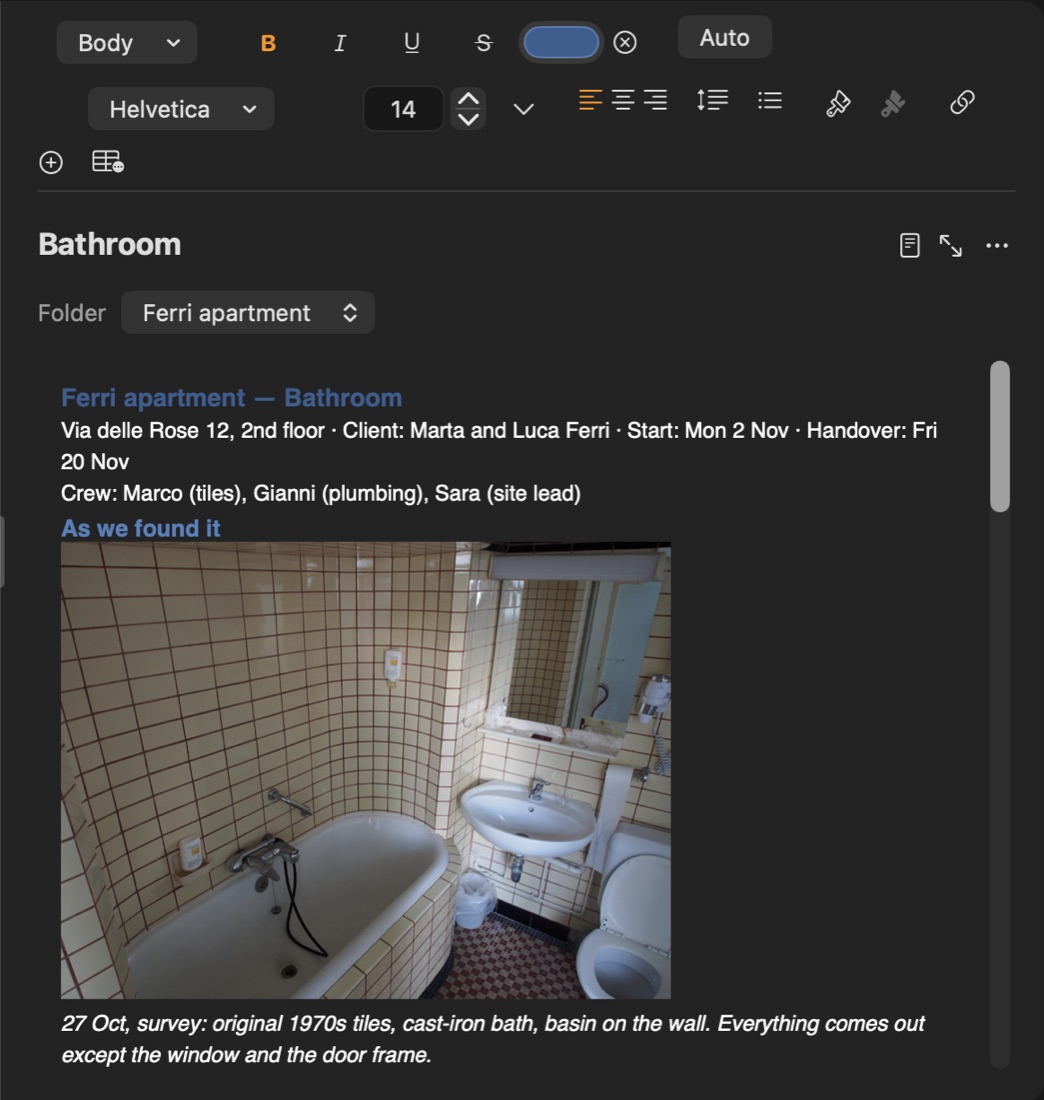
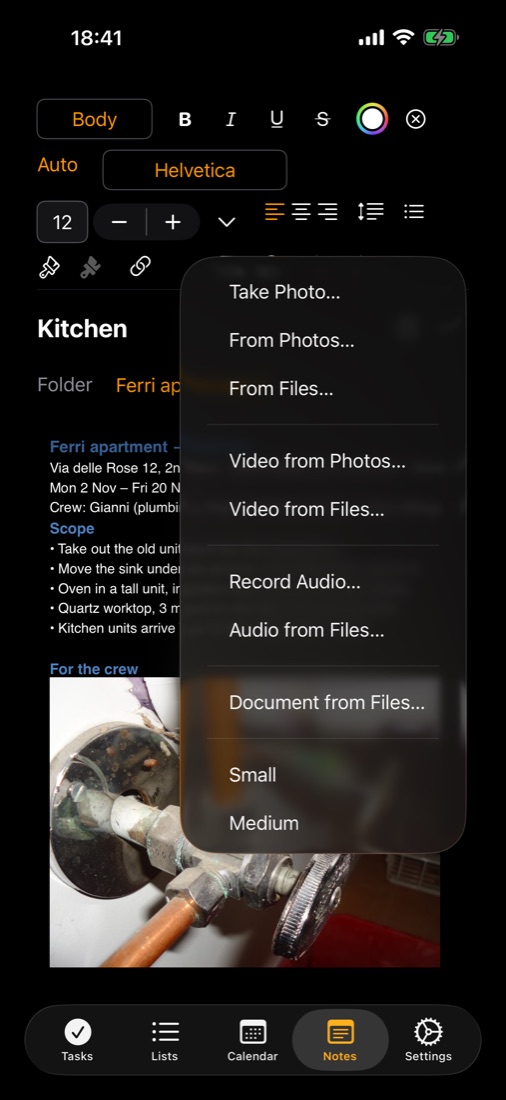
Put the cursor where it should go, then use the + button in the tool bar above the text.
| To add | On a Mac | On an iPhone or iPad |
|---|---|---|
| A photo | Photo from Files… | Photo from Photos…, Photo from Files…, Take Photo… |
| A video | Video from Photos…, Video from Files… | Video from Photos…, Video from Files…, Record Video… |
| A recording | Audio from Files…, Record Audio… | Audio from Files…, Record Audio… |
| A document | Document from Files… | Document from Files… |
Document from Files… puts a Word document (.docx), an RTF, an RTFD or a PDF in at the cursor, with its formatting, tables and pictures.
On a Mac, photos and videos can't be taken and drawings can't be made. Do these on the iPhone or iPad, and they then appear in the note on the Mac as well.
New photos: in the same menu sets the size photos come in at.
Once it is in the note
Every photo, drawing, recording and video has the same kind of menu. To open it:
- Mac: right-click it, or click it and use its button in the tool bar.
- iPhone and iPad: touch and hold it, or tap it and use its button in the tool bar.
The menu runs in this order:
- What opens it: View Full Size, Play Video or Play Audio. On an iPhone or iPad, a drawing has Edit Drawing….
- Its own commands, described below.
- Export, Tags…, Size and Text Wrap.
- Cut, Copy, Paste, Duplicate and Delete.
- Select and Select All.
Copying words from a picture
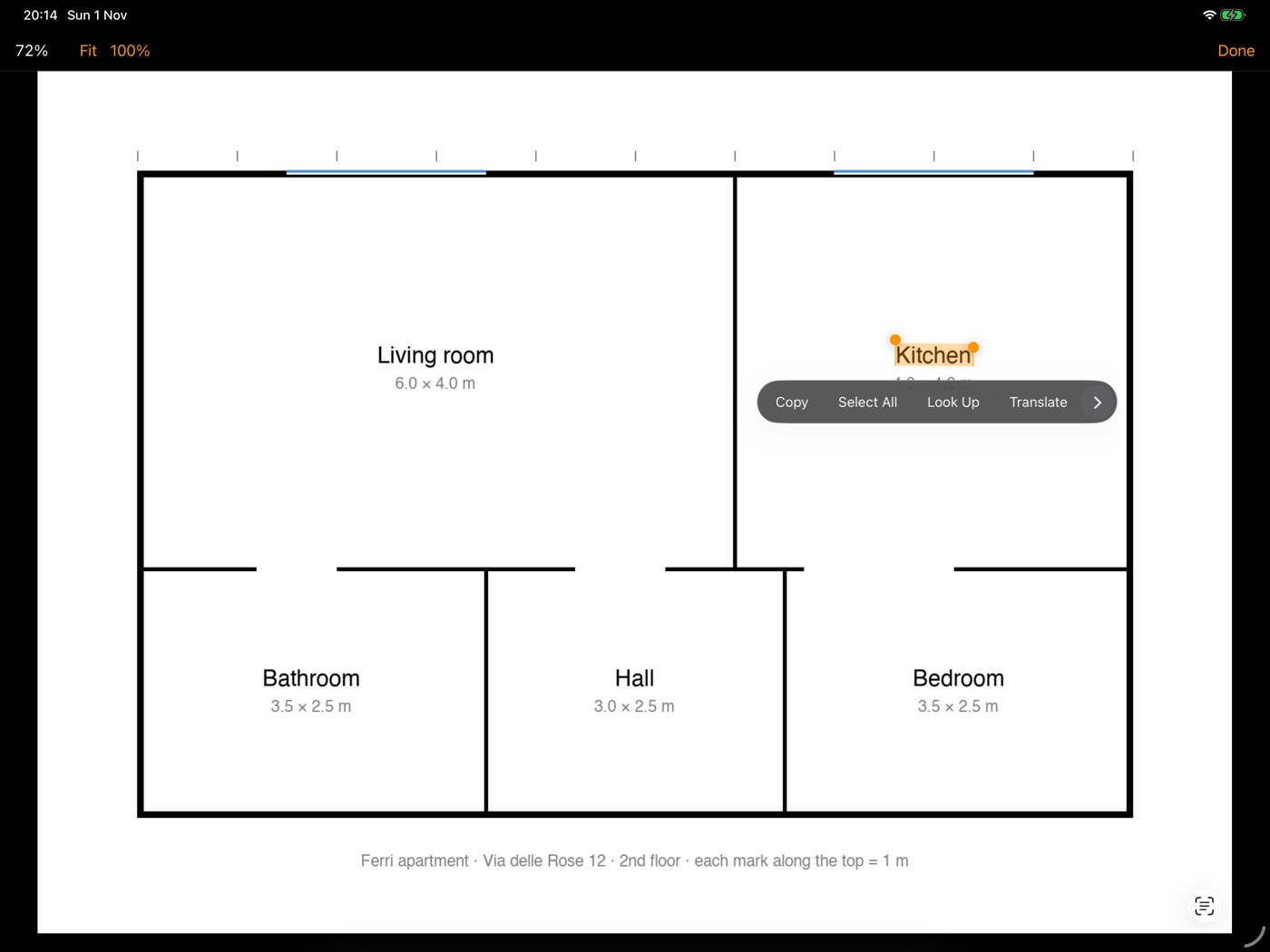
In View Full Size, the words on a photo or a PDF page can be selected.
- Mac: drag over them, then copy them with ⌘C or a right-click.
- iPhone and iPad: touch and hold a word, drag to select more, and choose Copy.
Photos
- Rotate: left or right, 90° or 45°, or back to how it was taken.
- Crop…
- Export Photo: as shown, or the original.
- Size: Small, Medium, Large or Full Width, or drag a corner for any size.
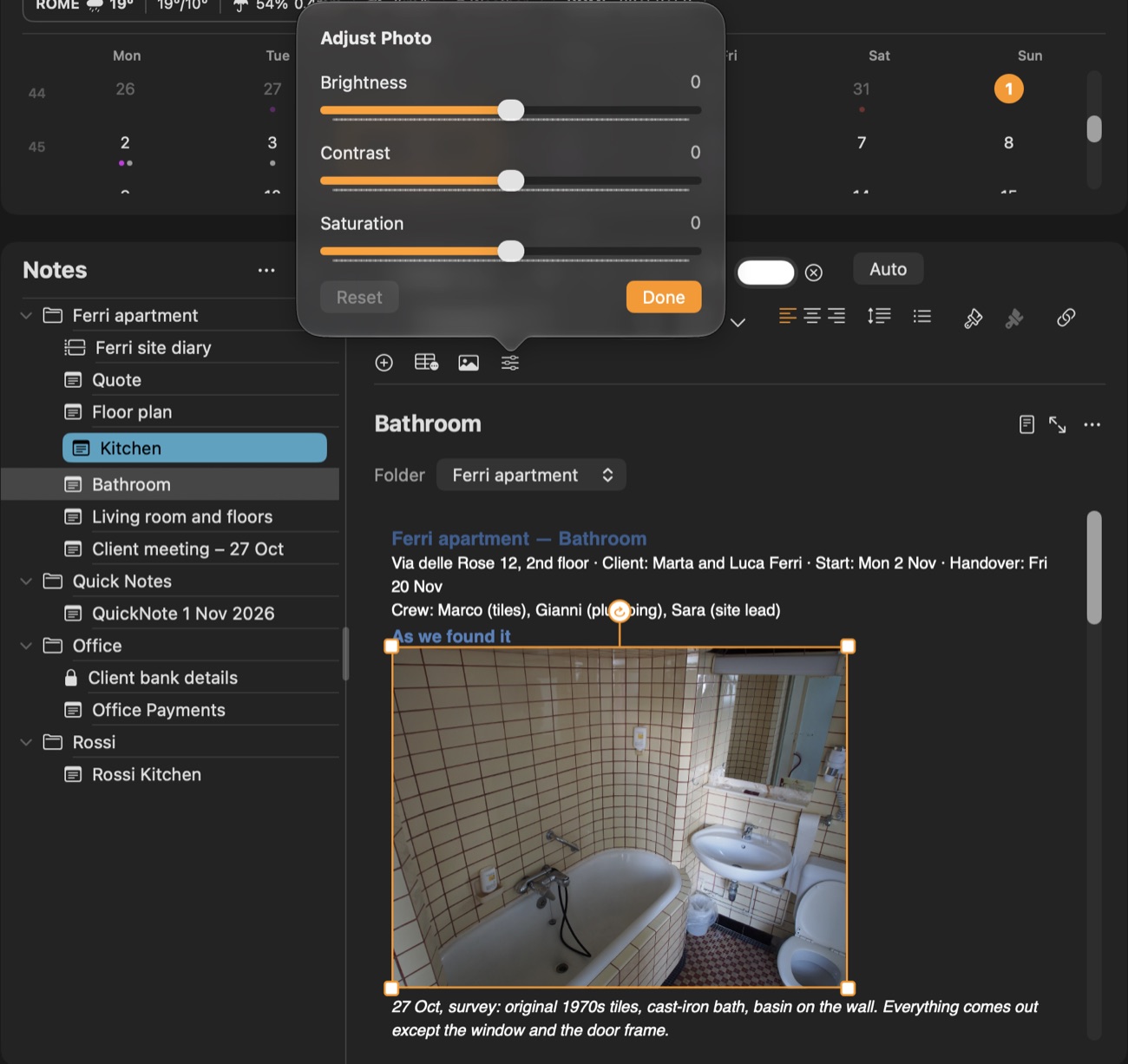
The second button beside the photo's adjusts brightness, contrast and saturation.
Text around a picture
A photo, drawing or video can sit at the side of the text instead of in its line. In its menu, Text Wrap:
- In Line: in its line, as usual.
- Left, Text on the Right or Right, Text on the Left: at that side, with the text flowing beside it and on under it.
- Space Around: the gap between the picture and the text: None, Small, Medium, Large or Extra Large. It works in line too, as space above and below.
To place a picture, drag it:
- Mac: press on it and drag.
- iPhone and iPad: touch and hold it, then drag.
Move it up or down to another line, or sideways. An orange outline shows where it will land. One Undo puts it back.
While a wrapped picture is selected, the alignment buttons are off, because its side decides where it sits. A picture too wide to leave room for text beside it stays in line.
In a PDF, a print or a Word file, the picture sits as it does in the note. In page view and in a PDF, a picture that doesn't fit at the bottom of a page moves to the top of the next one. RTFD shows it in line.
Keep Ambitus up to date on all your devices. A device that still has an older version shows a wrapped picture in line, and if you change the note there, the picture goes back in line on all your devices. Justified text goes back to the left in the same way.
Drawings
Making a drawing (iPhone and iPad)
- Tap the drawing button beside the +.
- Choose the paper: Screen, A4 Upright, A4 Landscape, Square, or Custom Size… (width and height in cm or px).
- Draw with a finger or an Apple Pencil, with pens, a marker, an eraser and colours.
- Tap Done to put the drawing into the note.
A drawing's menu
- Edit Drawing… (iPhone and iPad)
- Paper Colour…
- Resize Drawing…: makes the whole drawing bigger or smaller, paper and ink together. Type the width or the height, in cm or px, and the other follows. Nothing is cut off and the lines stay sharp.
- Crop…
- Export Drawing: with its paper, or with no background.
- Size: how big it shows in the note, where the widest is Width of the Page. It doesn't change the drawing itself.
In the drawing screen (iPhone and iPad)
Zoom. The paper stays the size it was made at. The zoom (57%) shows how close you are. Tap it for 100%, Whole Page or Fit Width. 100% is the paper at its real size.
Pen size. Tap the size in the top bar to set the pen's or eraser's exact size, and the ink's opacity. Each tool remembers its own. Choosing a size in Apple's palette goes back to the palette's sizes.
Select. The lasso in the tool palette takes only what is inside the loop you draw; a line crossing the loop is cut where it crosses.
- Drag inside the outline to move it, or drag its corner to resize it.
- Use its menu for Cut, Copy, Paste, Duplicate and Delete.
- What you copy can be pasted into any drawing.
- Undo restores the cut lines.
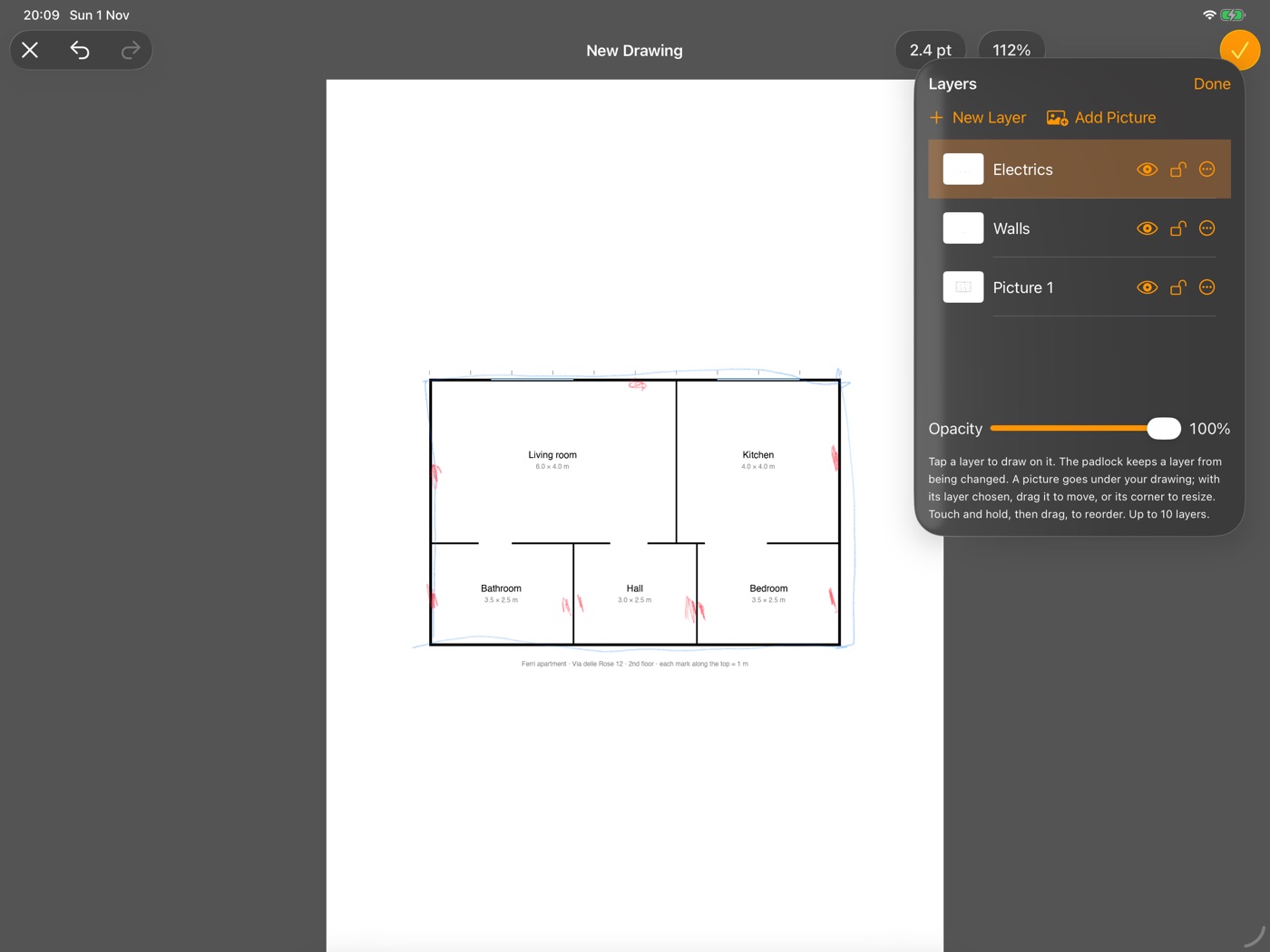
Layers. The button in the top bar keeps parts of a drawing apart, up to 10 layers. The note shows the visible layers together.
- Tap a layer to draw on it.
- Use the eye to show or hide it.
- Use the padlock to lock it: nothing can be drawn, erased or moved on it until you unlock it.
- Use its ⋯ menu to select everything on it, or to rename, duplicate or delete it.
- Drag a layer to change the order.
- Select ▸ Move to Layer moves what you selected to another layer.
Add Picture. In Layers, this puts a picture under your drawing to trace over. Paste one you copied, or choose one from Photos or Files. With its layer chosen, drag the picture to move it, or its corner to resize it. The layer's opacity fades it.
Sizes
px is the size of the picture Export Drawing gives. The largest paper is 70.6 cm (6000 px) on its longer side, the smallest 2 cm (170 px).
Recordings
- Play Audio
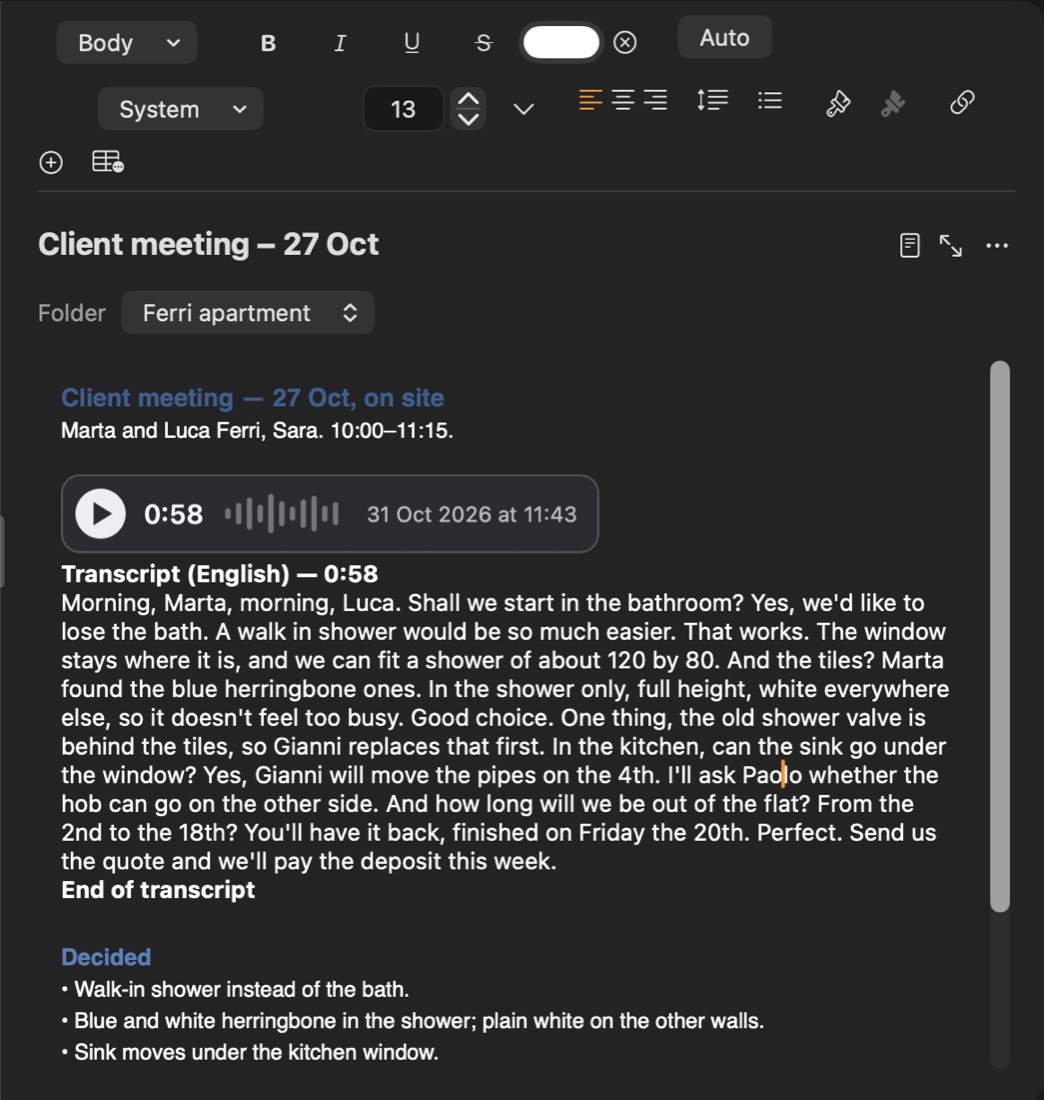
- Transcribe: writes the spoken words into the note as text. Choose the language there. Settings ▸ Notes sets the one it starts with.
- Export Audio…
A sound file added from Files is kept at a size suited to speech and music. A large one is made smaller, and a small one is kept as it is.
Video
The note shows a still picture with ▶ and the length. Play Video opens it.
- The note keeps a smaller copy, up to 1080p, so that it syncs quickly. The original stays in the Photos app.
- Settings ▸ Notes ▸ Videos chooses Large (the sharper picture) or Small (about a third less space).
- Putting the same video into a note again uses the same copy, so it takes no extra space.
- Export Video gives the 1080p copy or the original from Photos.
- Size works as for photos.
Tags
Tags… gives a photo, drawing, recording or video words of its own, so that Search can find it. See Search.
Where they are kept
They are in a folder called Note Photos inside your Notes folder. They follow the note when it is renamed or moved.
When a note is duplicated, its photos and drawings are copied. Its videos and recordings are shared with the copy, not copied, so they take no extra space.
When one of them is no longer in any note, Ambitus removes it after 30 days:
- Mac: it goes to the Trash.
- iPhone and iPad: it goes to Recently Deleted in the Files app.
Clean Up Unused Media… does it at once. It is in the ••• at the top of Notes, and in Settings ▸ Storage.