 Ambitus
Tables
A table in Ambitus sits in the note, among your text, and works much like a small spreadsheet. It can add up columns, take tick boxes and colours, and go out to Numbers or Excel.
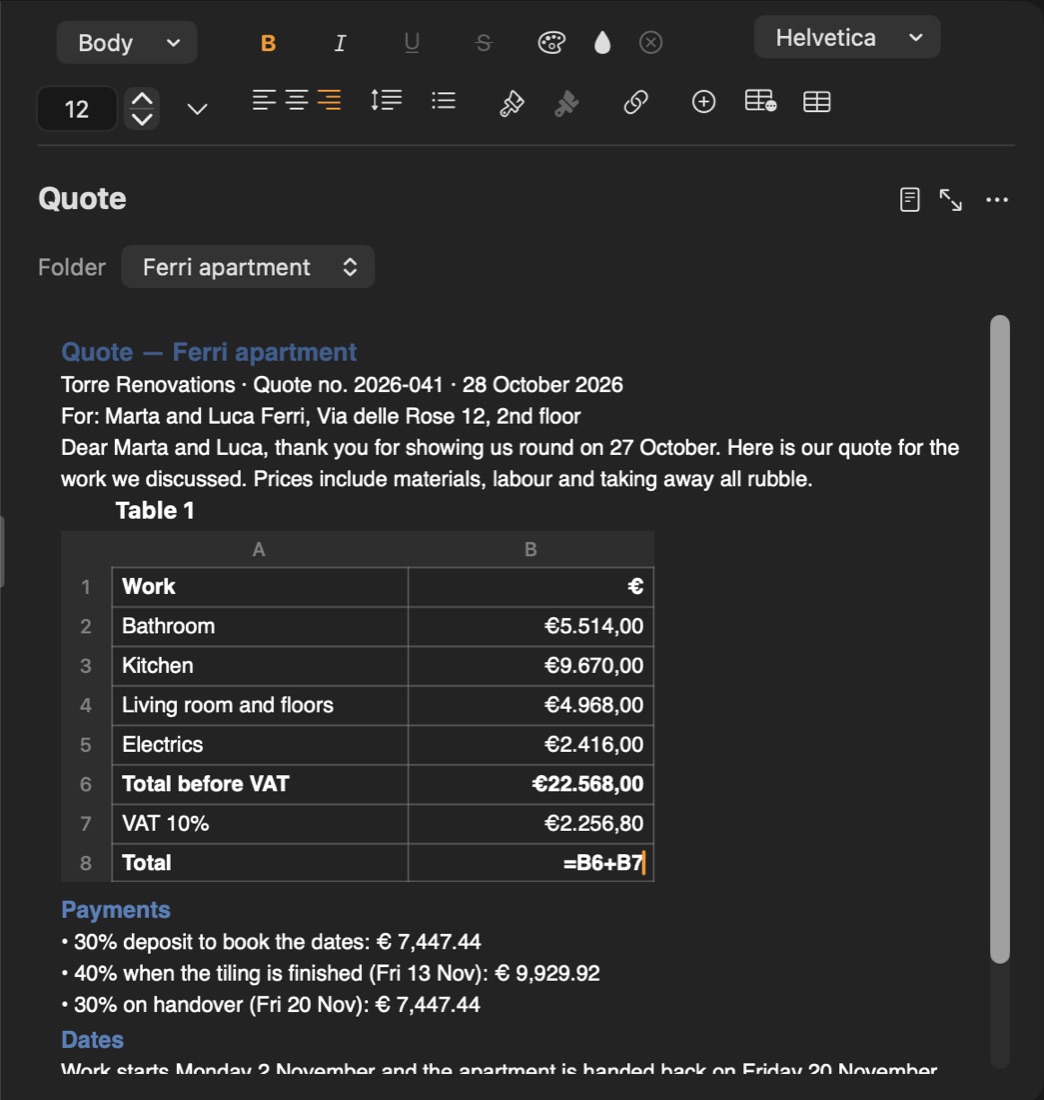
Making a table
The table button in the tool bar above the text offers 2 to 6 columns. On a Mac, or an iPad with a keyboard, ⌥⌘T makes one with 3 columns.
A new table has a header row and two rows, and typing starts in its first cell.
Moving around
| Key | Does |
|---|---|
| Tab | Next cell |
| ⇧Tab | Cell before |
| Return | Cell below |
| ⇧Return | Cell above |
| ⌥Return | New line inside the cell |
On an iPhone or iPad, Tab and ⇧Tab need a keyboard attached. On the on-screen keyboard, Return is a new line, and the bar above the keyboard has → (next cell) and ↓ (cell below).
A tap or click outside the table goes back to the note's text.
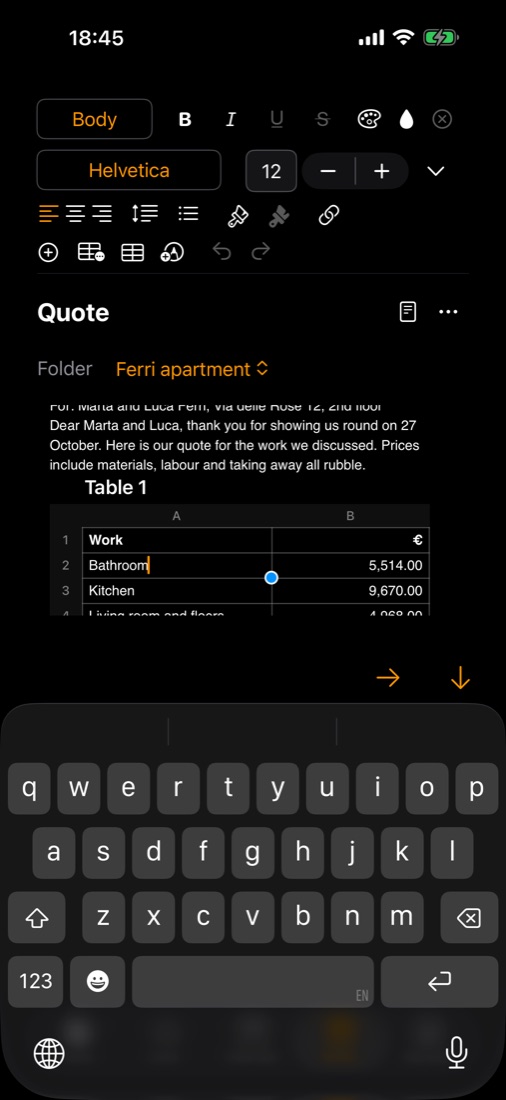
Rows and columns
| Key | Does |
|---|---|
| ⌥↑ | Adds a row above |
| ⌥↓ | Adds a row below |
| ⌥← | Adds a column to the left |
| ⌥→ | Adds a column to the right |
On an iPhone or iPad, these keys need a keyboard attached. Everyone can use the table's menu instead.
To make a column wider, drag the line between two columns, or between two of the letters above them. In a long table the letters stay at the top, so a column can be widened anywhere in it.
Selecting cells
- Mac: click a cell to select it. Shift-click selects everything in between. ⌘-click adds a cell or takes it out.
- iPhone and iPad: tap a cell to type in it. Once cells are selected, a tap on another cell adds it to the selection or takes it out. Two taps on a cell go back to typing there.
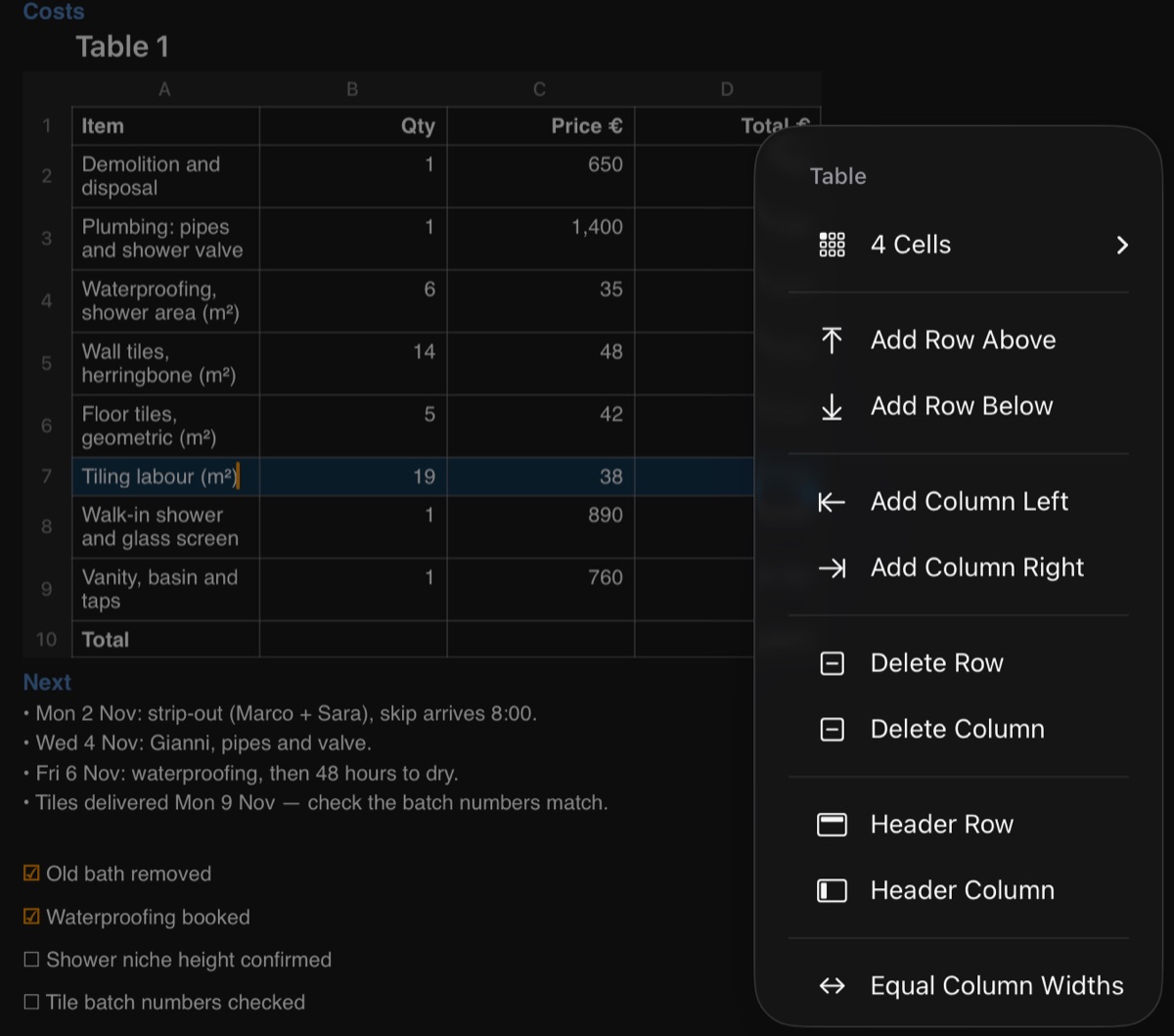
The table's menu
To open it:
- Mac: right-click any cell, the corner, a row number or a column letter.
- iPhone and iPad: touch and hold any of these.
- Everywhere: use the table button that appears in the tool bar while you are in a table.
All of these give the same menu, in three parts.
First, what is selected, shown by name (Cell, 6 Cells, 2 Rows):
- Copy, Paste, Clear
- Fill Colour…, Text Colour…
- Copy Style, Paste Style
- Number Format…
- Borders…
- the alignments
- Checkbox
- Merge Cells, Unmerge Cells
- for whole rows or columns, adding and deleting them
Then the table:
- Add Row Above / Below, Add Column Left / Right
- Delete Row, Delete Column
- Header Row, Header Column
- Equal Column Widths, Automatic Row Heights
- Table Name…, Show Name
Last, the whole table:
- Cut Table, Copy Table, Duplicate Table
- Export Table, Save Table as Template…
- Delete Table
Formulas
A cell that starts with = shows its result, for example =B2+B3 or =SUM(B2:B10).
- You can use + − × ÷ and brackets, and SUM, AVERAGE, MIN, MAX and COUNT.
- While typing a formula, tap or click another cell to put it in.
- Formulas follow when rows or columns are added or deleted.
- A ticked box counts as 1.
If a cell shows one of these, this is what it means:
| Shows | Means |
|---|---|
| #ERR | A mistake, or text used as a number |
| #REF | Its cell was deleted |
| #DIV/0 | A division by zero |
| #LOOP | The formula needs its own result |
Totals from another table
Give a table a name with Table Name…. Another table in the same note can then use it: =Food::C10. Show Name shows or hides the name above the table.
Number formats
Number Format… for the selected cells offers Automatic, Number, Euro (€), US Dollar ($) or Australian Dollar (A$), with the number of decimals and a thousands separator.
Borders
Borders… in the table's menu draws lines on cells, for forms and invoices.
- Mac: select the cells, then choose Borders…. The window can be moved, so you can see the table beside it.
- iPhone and iPad: for one cell, touch and hold it and choose Borders…, with no need to select it first. For several cells, select them first.
- iPad: the panel can be dragged anywhere in the note. With the note in full screen, it can go anywhere on the screen.
- iPhone: the panel opens at the top, over the tools.
In the window:
- Tap or click the lines in the small picture to choose them, in any mix, or use All, Outside or Inside.
- Choose a Thickness (None takes the lines away) and a colour.
- The table shows the result as you choose. Apply keeps it, Cancel leaves the table as it was.
- Normal Lines puts back the table's usual thin grey lines.
- One Undo takes it all back.
Borders go into a Word export, a PDF, a picture and printing. An older version of Ambitus opens a note with borders to read only, until it is updated.
Tick boxes in cells
Checkbox in the table's menu turns the selected cells into tick boxes.
- Mac: double-click a box to tick it, or press Space. One click only selects the cell.
- iPhone and iPad: double-tap a box to tick it. One tap only selects the cell.
The list button's Checkbox is for lines of text. Inside a table it's greyed out.
Moving and copying a table
Cut Table or Copy Table, then Paste anywhere in a note, the same one or another, moves or copies the whole table with its formulas and look.
You can also drag it to another place in the note:
- Mac: press on the table and drag it. A click without dragging opens it for typing, as before.
- iPhone and iPad: touch and hold the table, then drag it.
Tables from other apps
Cells copied from Numbers or Excel, or a table copied as Markdown, can be pasted into a cell. Each value lands in its own cell, and the table grows to fit. Only the text comes over.
Several places at once
- Cells copied from scattered places and pasted onto cells in the same pattern land one value each.
- Several whole rows or columns picked one by one are deleted together (Delete 3 Rows). One Undo brings them all back.
Exporting a table
Export Table in the table's menu gives CSV (for Numbers or Excel), PDF, a picture (PNG) or tab-separated text. Formulas are exported as their results.
Contents · ← Photos, Drawings, Recordings and Video · The Time Note →